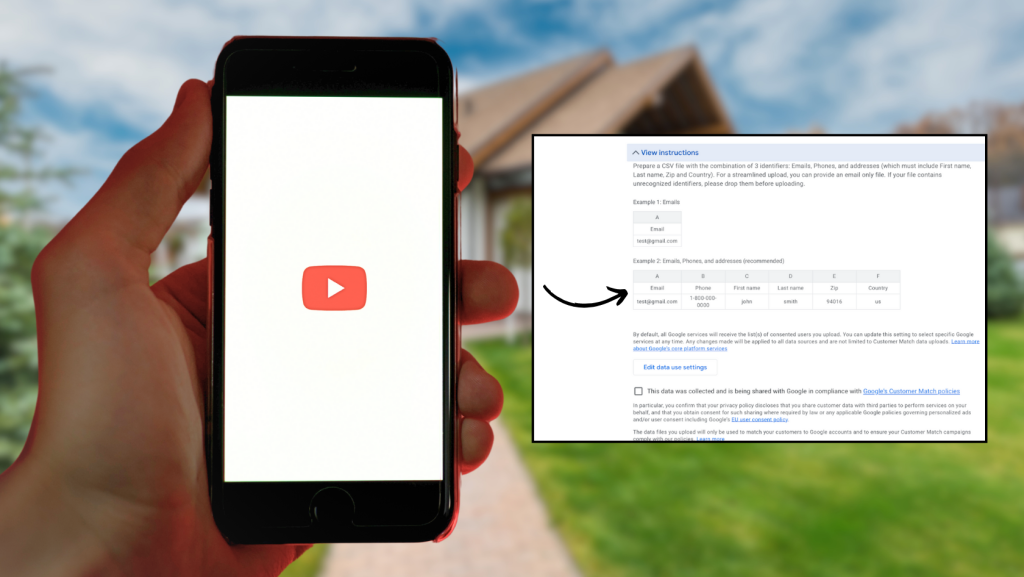

If you missed my recent BAM webinar, we explored the transformative power of YouTube Ads for real estate agents. Many agents are already familiar with uploading their database of contacts into Meta’s Ad Manager to run targeted campaigns on Facebook and Instagram.
However, most don’t realize that you can do the same—and with even greater effectiveness—using Google Ads. Imagine delivering TV commercials directly to your audience on the world’s largest video platform.
In this article, we’ll dive into how you can leverage your CRM database within Google Ads Audience Manager to supercharge your marketing efforts. (And don’t forget to sign up for BAMx to access the full 70-page step-by-step tutorial complete with videos. Use code DUSTIN at checkout for 30% off!)
Why YouTube Ads Are a Game-Changer for Realtors
Before we dive into the step-by-step guide, let’s briefly revisit why YouTube Ads are an invaluable tool for your real estate business.
- Unmatched Reach: YouTube has over 2 billion monthly active users. This vast audience allows you to showcase your listings and expertise to potential buyers and sellers who are actively engaging with video content.
- Higher Engagement: Video content enables you to tell a story, showcase properties in detail, and build a personal connection with your audience.
- Cost-Effective Advertising: Compared to traditional TV commercials, YouTube Ads offer a more affordable platform with measurable results. You only pay when someone watches your ad, ensuring your budget is spent on genuinely interested viewers.
- Advanced Targeting Capabilities: By uploading your CRM database, you can target your existing contacts with precision, increasing the likelihood of engagement and conversion.
The Power of Uploading Your CRM Database
Integrating your CRM database with Google Ads Audience Manager is a strategic move that can significantly enhance your marketing ROI. Here’s why:
- Personalized Marketing: Tailor your ads to resonate with local market updates.
- Re-engage Leads: Reach out to past clients or leads who may be ready to make a move, keeping your services top-of-mind.
Keep in mind that Google requires that your customer list have at least 1,000 active users for your ads to start serving effectively. This minimum is set to ensure that your audience is large enough for Google to match your customer data with Google user accounts while maintaining user privacy standards.
Step-by-Step Guide: Uploading Your CRM Database into Audience Manager
Ready to harness this powerful strategy? Let’s walk through the process step by step.
Step 1: Prepare Your CRM Data
Ensure your CRM data is clean and organized:
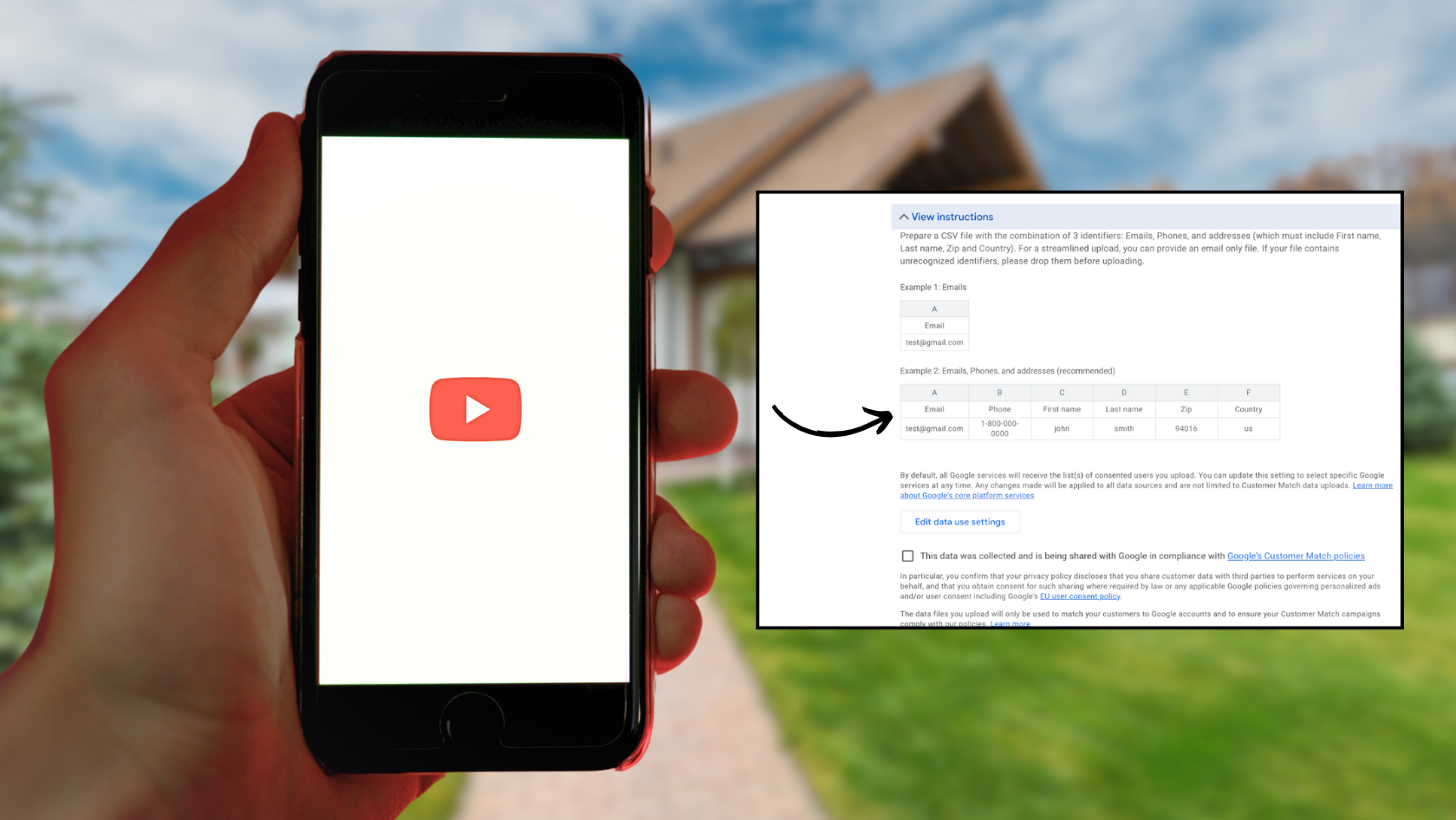
- Format Correctly: Use separate columns for each type of data (e.g., one for emails, another for phone numbers).
- Clean Your Data: Remove duplicates and verify accuracy.
- Compliance: Ensure compliance with Google’s Customer Match policies and privacy regulations.
Step 2: Access Google Ads
Log in to your Google Ads account. If you don’t have one, create it.
Step 3: Navigate to Audience Manager
Click on the Tools & Settings icon (🔧) in the upper right corner (or left under the new design).
Then, under Shared Library, select Audience Manager.

Step 4: Create a New Audience
Click the blue “+” button and select Customer List.

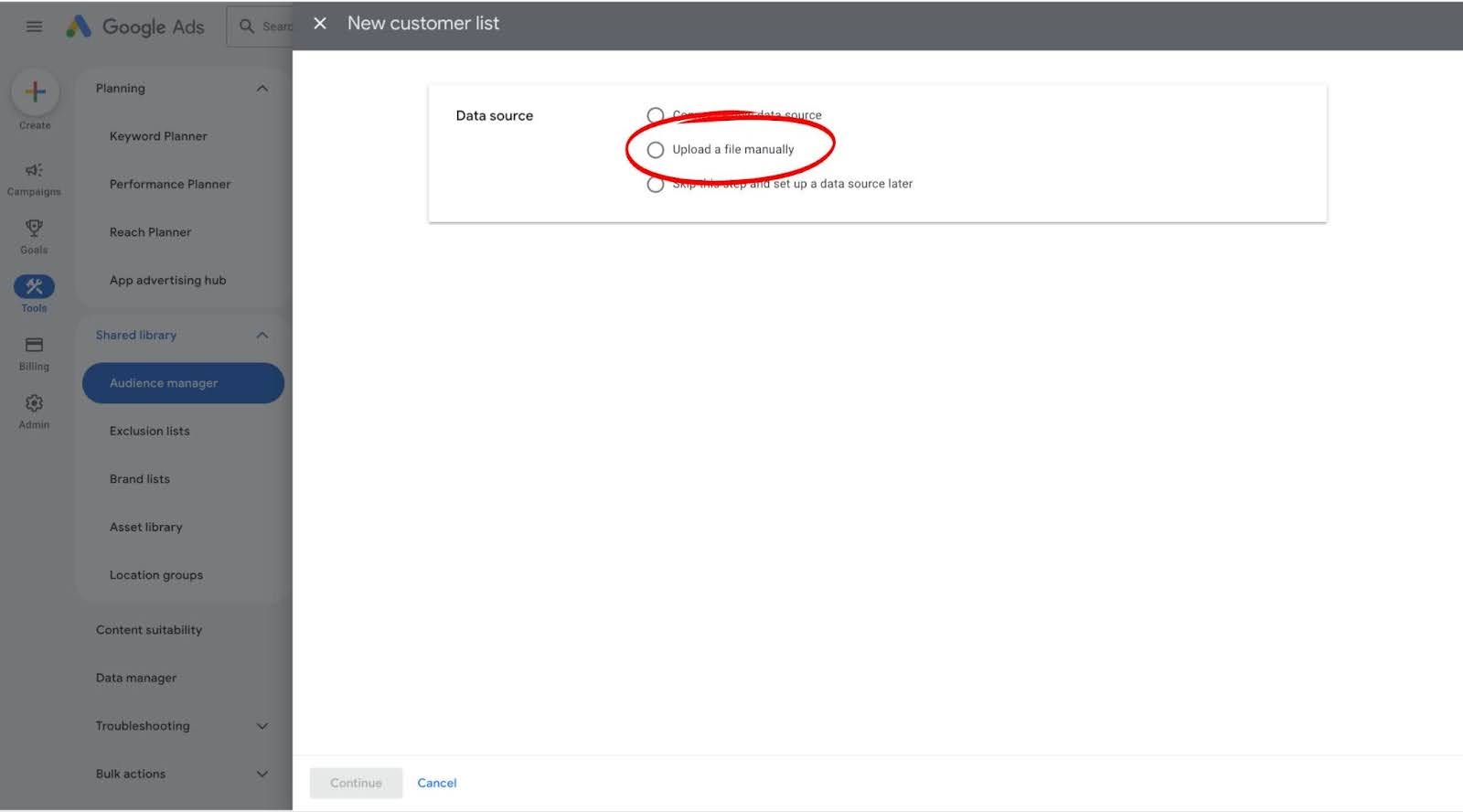
Step 5: Upload Your CRM List
Name Your Audience (e.g., “October CRM Contacts”).
Select Data Type: Choose emails, phone numbers, or both.
Upload Your File: Click Upload and select your CSV file.
Audience Description: Write a brief description about your audience.

Step 6: Agree to Terms and Upload
Review and agree to Google’s policies.
Click “Upload and Create.”
Step 7: Wait for Processing
Processing typically takes 48 hours. The status will show as “In Progress”.
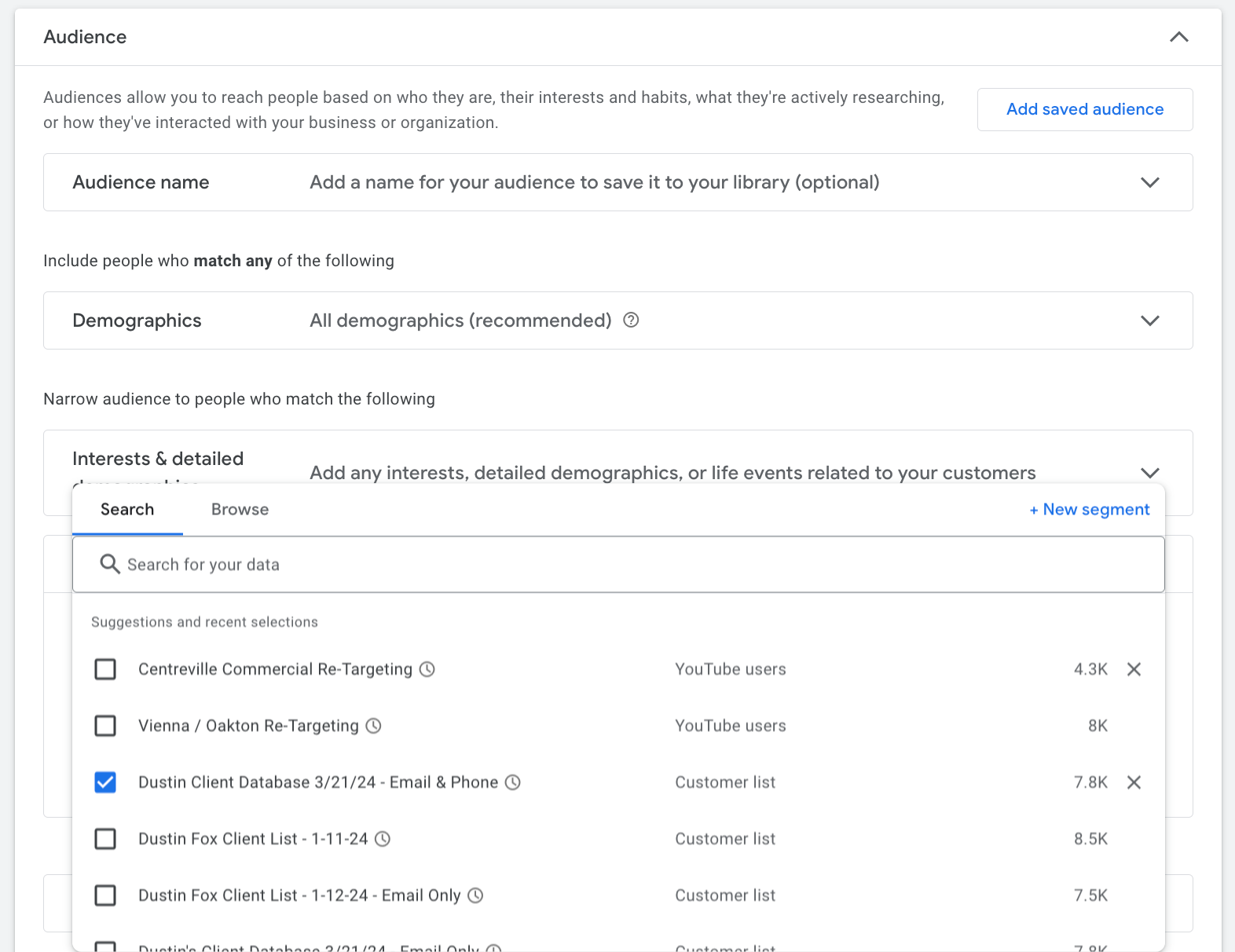
After the 48-hour processing time, you’re ready to send ads to your custom audience. Simply follow the step-by-step instructions in my BAMx tutorial, except this time, you’ll choose your specific database under the “Audience” and “Your Data” sections.
Don’t Miss Out on the Full Tutorial
To truly master YouTube Ads and elevate your marketing, sign up for BAMx. Members gain access to:
- A Comprehensive 70-Page Tutorial: Step-by-step guidance.
- Detailed Videos: Visual learning to complement the guide.
- Insider Tips and Advanced Strategies: Stay ahead of the competition.
And don’t forget to use code DUSTIN at checkout for 30% off your first year or month of membership.
For any questions or further assistance, DM me on Instagram @dustinmfox.